
Initial Setup
This content is for the 1.0 version. Switch to the latest version for up-to-date documentation.
Use Case 1: Initial Setup (Admin)
Section titled “Use Case 1: Initial Setup (Admin)”Objective
Section titled “Objective”Configure Flexible Team Share for first use in the organization.
Prerequisites
Section titled “Prerequisites”- System Administrator profile
- FTS_App_Access permission set assigned
| Step | Action | Expected Result |
|---|---|---|
| 1 | Navigate to App Launcher | Search shows “FlexiTeam” app |
| 2 | Open FlexiTeam app | FlexiTeam Home page loads |
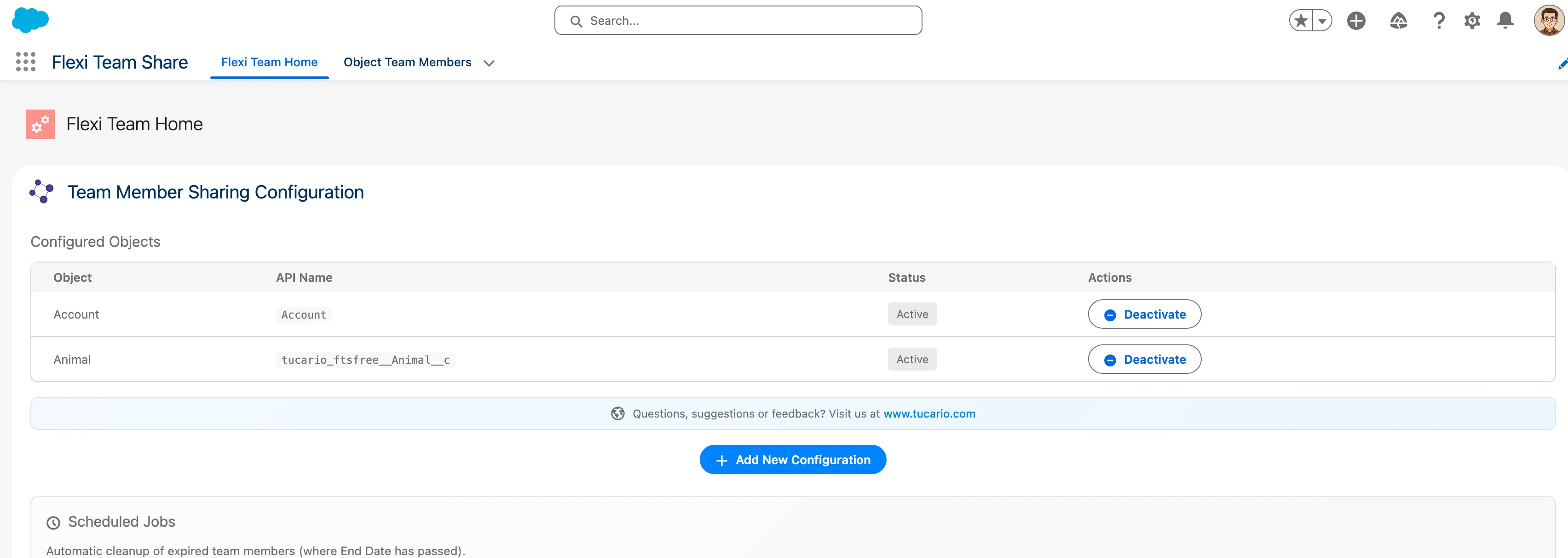
| 3 | Click “Configuration Wizard” tab | Wizard displays with two sections |
| 4 | In “Object Configuration”, click “Add Object” | Modal opens with available objects |
| 5 | Select “Case” from dropdown | Case object selected |
| 6 | Click “Save” | Config saved, Case appears in list as Active |
| 7 | (Optional) Schedule cleanup job | Job scheduled, next run time displayed |
Validation Points
Section titled “Validation Points”- [ ] Only objects with Private/Public Read Only OWD appear in dropdown
- [ ] Already configured objects don’t appear in dropdown
- [ ] Active toggle works correctly
- [ ] Cleanup job can be scheduled/unscheduled
Use Case 7: Deactivate Object Configuration (Admin)
Section titled “Use Case 7: Deactivate Object Configuration (Admin)”Objective
Section titled “Objective”Disable team sharing for an object and remove existing shares.
Prerequisites
Section titled “Prerequisites”- Object already configured and active
- Team members exist for this object
| Step | Action | Expected Result |
|---|---|---|
| 1 | Open Configuration Wizard | Config list visible |
| 2 | Toggle “Active” switch off for Case | Confirmation dialog |
| 3 | Confirm deactivation | Status changes to inactive |
| 4 | Check existing Case teams | Team members remain but shares removed |
Validation Points
Section titled “Validation Points”- [ ] Batch job runs to delete share records
- [ ] Team member records preserved
- [ ] Can reactivate later (shares recreated)
- [ ] Warning about share removal shown
Use Case 9: Manual Cleanup Execution (Admin)
Section titled “Use Case 9: Manual Cleanup Execution (Admin)”Objective
Section titled “Objective”Manually trigger cleanup of expired team members.
Prerequisites
Section titled “Prerequisites”- Admin access
- Expired team members exist (End_Date__c in past)
| Step | Action | Expected Result |
|---|---|---|
| 1 | Open Configuration Wizard | Scheduled Jobs section visible |
| 2 | View “Expired Members” count | Shows number of expired records |
| 3 | Click “Run Cleanup Now” | Batch job starts |
| 4 | Refresh page | Expired count reduced to 0 |
Validation Points
Section titled “Validation Points”- [ ] Expired count accurate
- [ ] Batch job completes successfully
- [ ] Expired members deleted
- [ ] Associated share records removed
Use Case 11: Configure Component Display (Admin)
Section titled “Use Case 11: Configure Component Display (Admin)”Objective
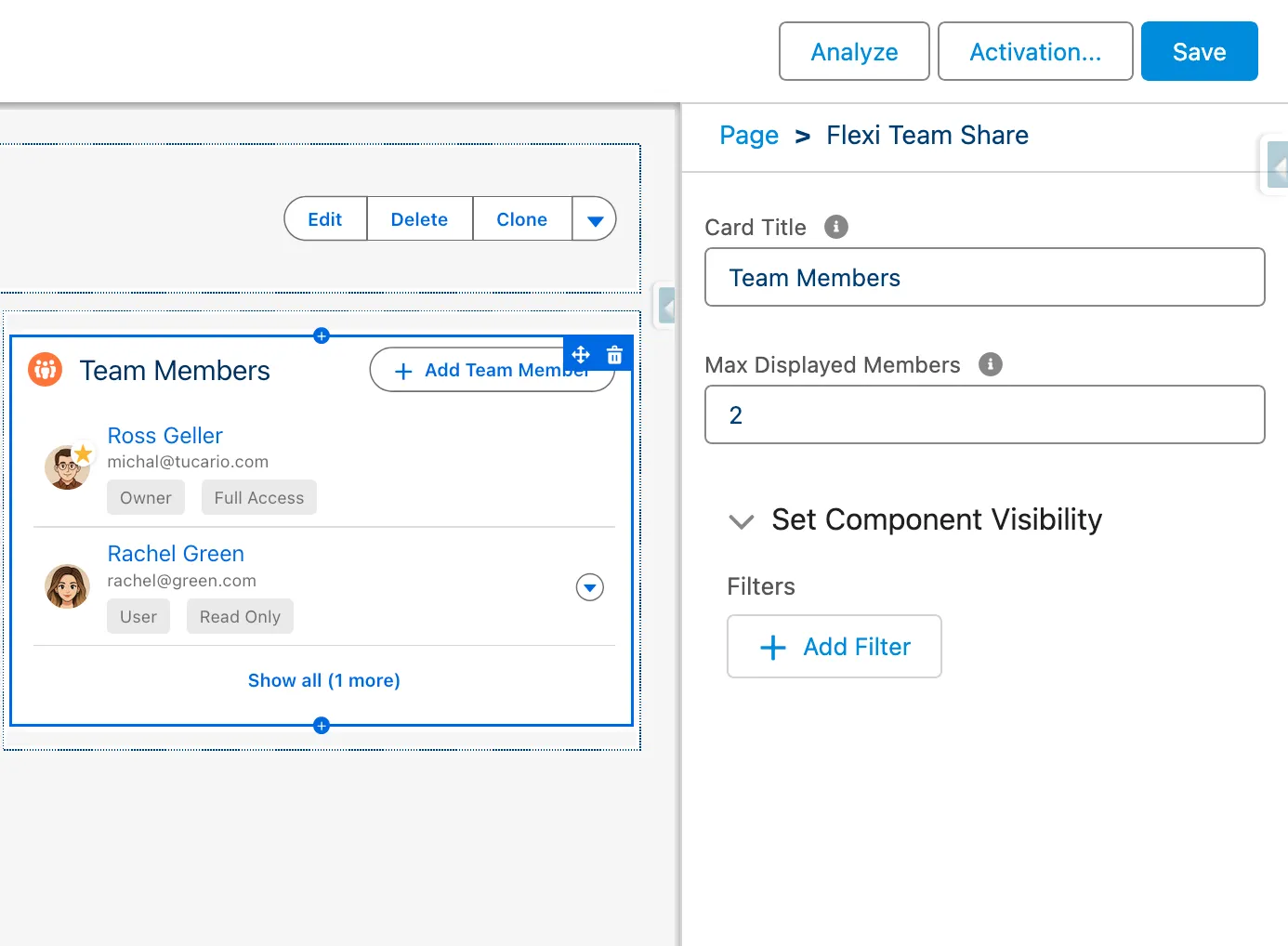
Section titled “Objective”Customize the Object Team Member component appearance: change the card title and set the maximum number of displayed team members.
Prerequisites
Section titled “Prerequisites”- System Administrator profile
- Access to Lightning App Builder
| Step | Action | Expected Result |
|---|---|---|
| 1 | Open record page in Lightning App Builder | Page editor loads |
| 2 | Click on the “Team Members” component | Component properties panel opens on the right |
| 3 | Change “Card Title” to custom value | Title preview updates |
| 4 | Set “Max Displayed Members” to desired number | Display limit configured |
| 5 | Save and activate the page | Changes applied |
| 6 | Open a record with team members | Component shows configured title and respects display limit |
Configuration Options
Section titled “Configuration Options”| Setting | Values | Behavior |
|---|---|---|
| Max Displayed Members = 5 | Default | Shows first 5 members, “Show X more” for the rest |
| Max Displayed Members = 0 | Show all | All team members visible, no collapse/expand |
| Max Displayed Members = 3 | Custom limit | Shows first 3 members, “Show X more” for the rest |
Validation Points
Section titled “Validation Points”- [ ] Card title changes reflected on the record page
- [ ] Display limit respected (correct number of members shown)
- [ ] “Show X more” button appears when members exceed limit
- [ ] Setting limit to 0 shows all members without collapse button
- [ ] Record owner always appears first regardless of limit
- [ ] “Show less” button collapses list back to configured limit
- [ ] Changes persist after page reload